
TUI Dashboard
Real-time terminal monitoring dashboard for Constellation Overwatch
Constellation Overwatch includes a Terminal User Interface (TUI) dashboard for real-time system monitoring directly from your terminal.
Quick Start
# Using Task (recommended)
task tui

# Direct execution
go run ./cmd/microlith/main.go --tui

# Built binary
./constellation-overwatch --tui
For best results, use a terminal with at least 120x40 characters and Unicode/true color support.
Dashboard Layout
The TUI displays four monitoring panels in a grid layout:
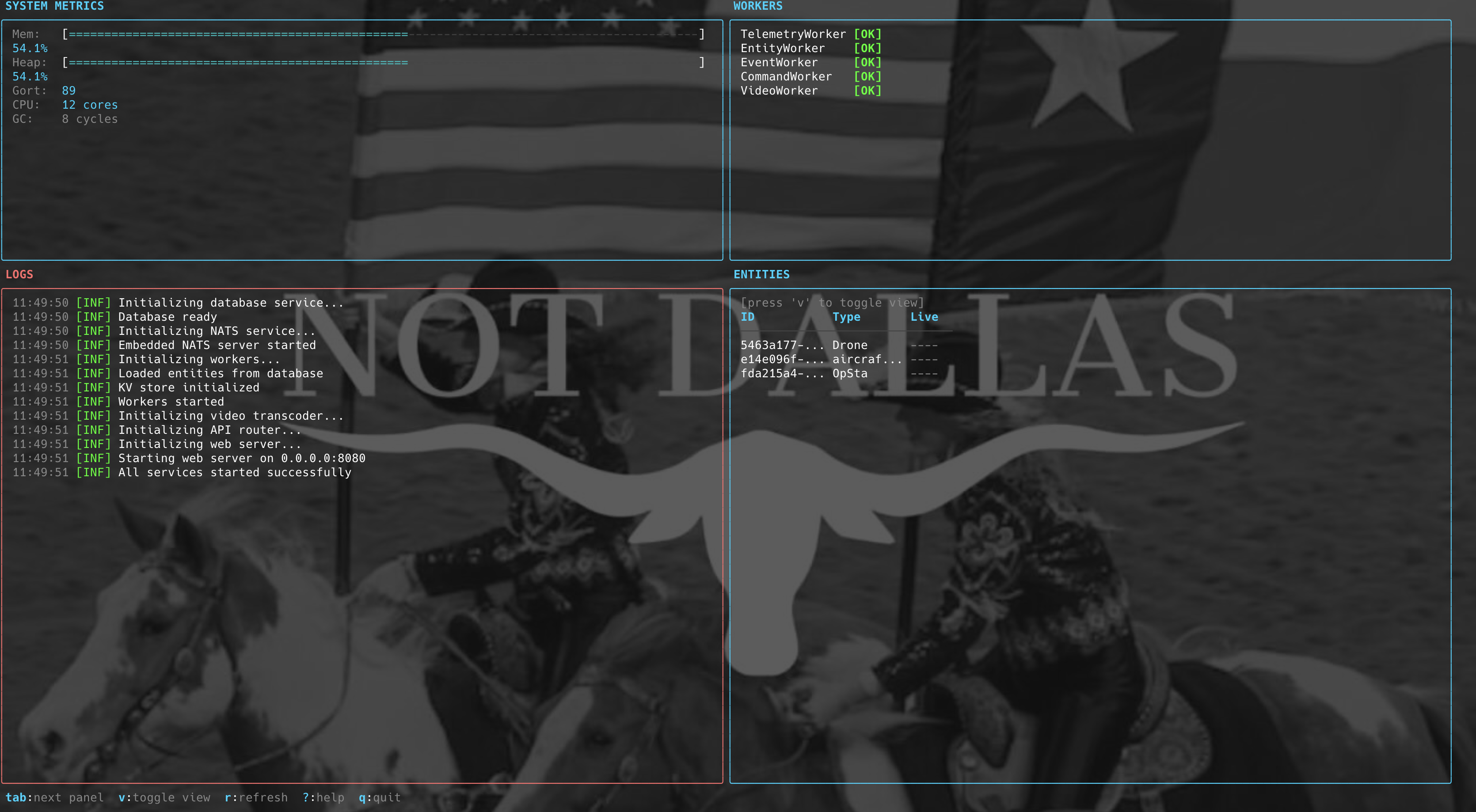
Panel Reference
System Metrics
Displays real-time resource utilization with visual gauges:
| Metric | Description |
|---|---|
| CPU | Current CPU utilization percentage |
| MEM | Allocated memory in MB/GB |
| GOR | Number of active goroutines |
| UP | Server uptime since start |
Workers
Shows health status of background workers:
| Badge | Meaning |
|---|---|
[OK] (green) | Worker is healthy |
[ERR] (red) | Worker health check failed |
Monitored workers include EntityWorker, TelemetryWorker, CommandWorker, and EventWorker.
Logs
Scrollable viewport displaying application logs with color-coded levels:
| Level | Color | Badge |
|---|---|---|
| DEBUG | Cyan | [DBG] |
| INFO | Green | [INF] |
| WARN | Yellow | [WRN] |
| ERROR | Red | [ERR] |
The log buffer retains up to 500 entries and auto-scrolls to new logs when at the bottom.
Entities
Toggleable view showing either connected entities or NATS stream statistics:
Entities View:
- Displays entity name, type, organization, and live status
- Entities are marked
LIVEif telemetry was received within 30 seconds
Streams View:
- Shows NATS stream statistics including message count, consumers, and storage
Press t while focused on this panel to toggle between views.
Keyboard Controls
Navigation
| Key | Action |
|---|---|
Tab | Move focus to next panel |
Shift+Tab | Move focus to previous panel |
q | Quit TUI and shutdown server |
Ctrl+C | Force quit |
? | Toggle help overlay |
r | Force refresh all data |
Logs Panel
| Key | Action |
|---|---|
Up / k | Scroll up one line |
Down / j | Scroll down one line |
Page Up | Scroll up one page |
Page Down | Scroll down one page |
Home / g | Jump to oldest log |
End / G | Jump to newest log |
Entities Panel
| Key | Action |
|---|---|
Up / k | Select previous item |
Down / j | Select next item |
t | Toggle between Entities and Streams view |
Terminal Requirements
For optimal display:
- Size: 120x40 characters minimum
- Unicode: Required for box-drawing characters
- True Color: Recommended for proper color rendering
Recommended Terminals
- iTerm2 (macOS)
- Alacritty
- Windows Terminal
- Kitty
Troubleshooting
Garbled Characters
Your terminal may not support Unicode box-drawing characters. Switch to a modern terminal emulator.
Missing or Wrong Colors
Enable true color in your terminal settings or set COLORTERM=truecolor environment variable.
Truncated Content
Resize your terminal to at least 120x40 characters.
No Workers Displayed
Wait for server initialization to complete. Workers register during the boot sequence.
To debug issues, run without TUI mode to see standard console logging: go run ./cmd/microlith/main.go